How do I add a unit?
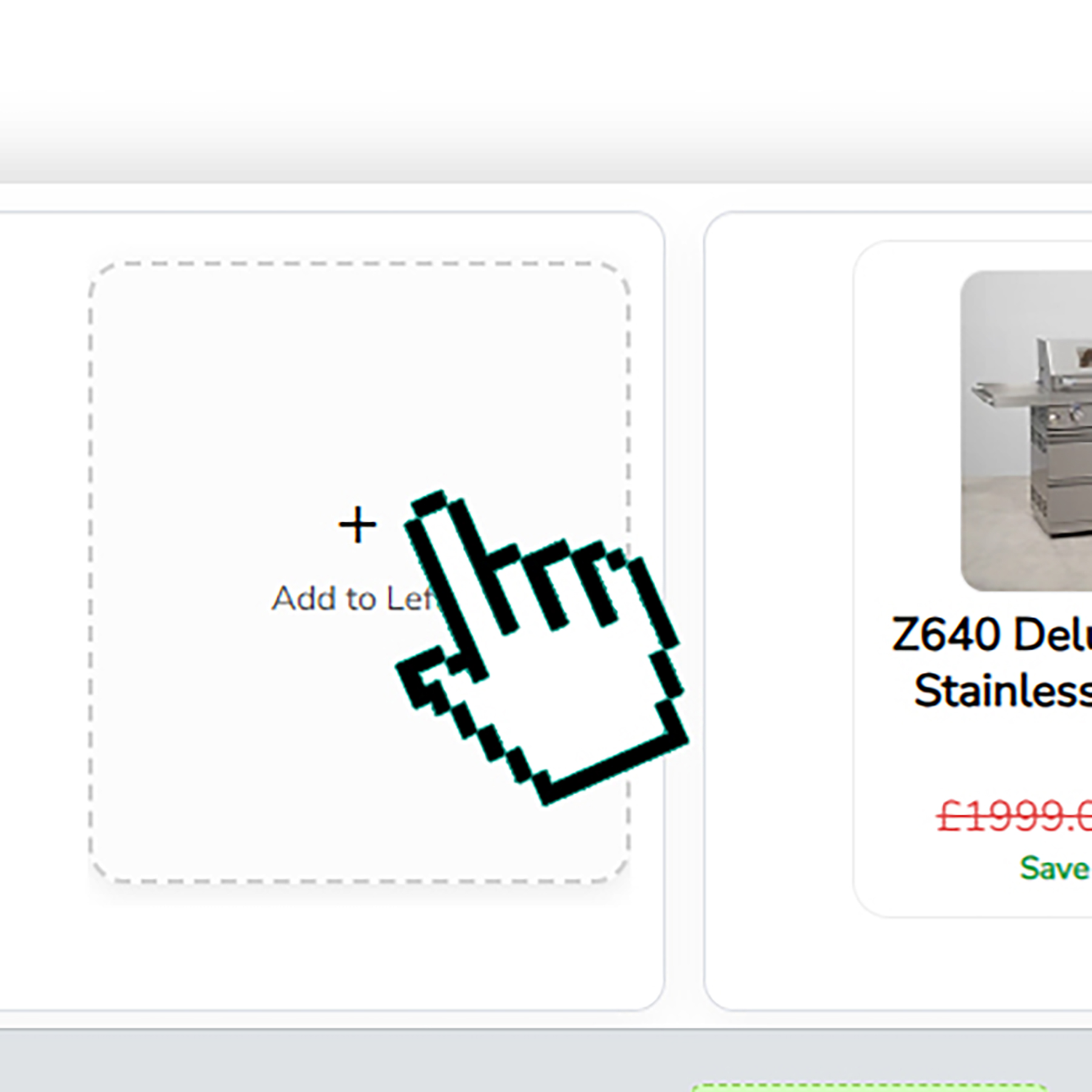
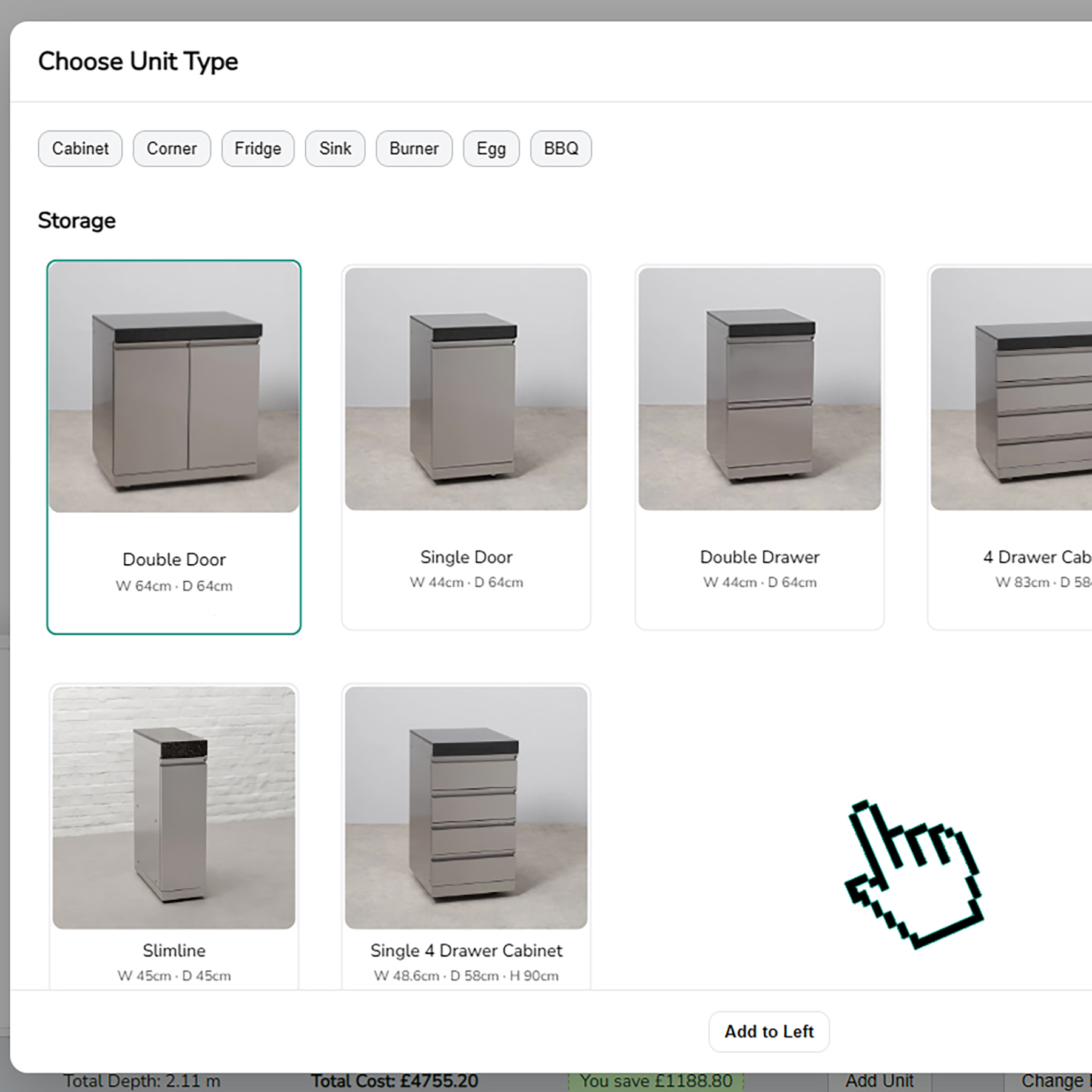
Tap Add to Left or Add to Right in the bottom bar. A list of unit cards opens. Tap the picture or title you want, then tap Add. The unit will appear next to the BBQ in the 3D scene and you will see its tile show up in the Kitchen Info strip (the bottom/right list of units in your scene).
How do I delete a unit?
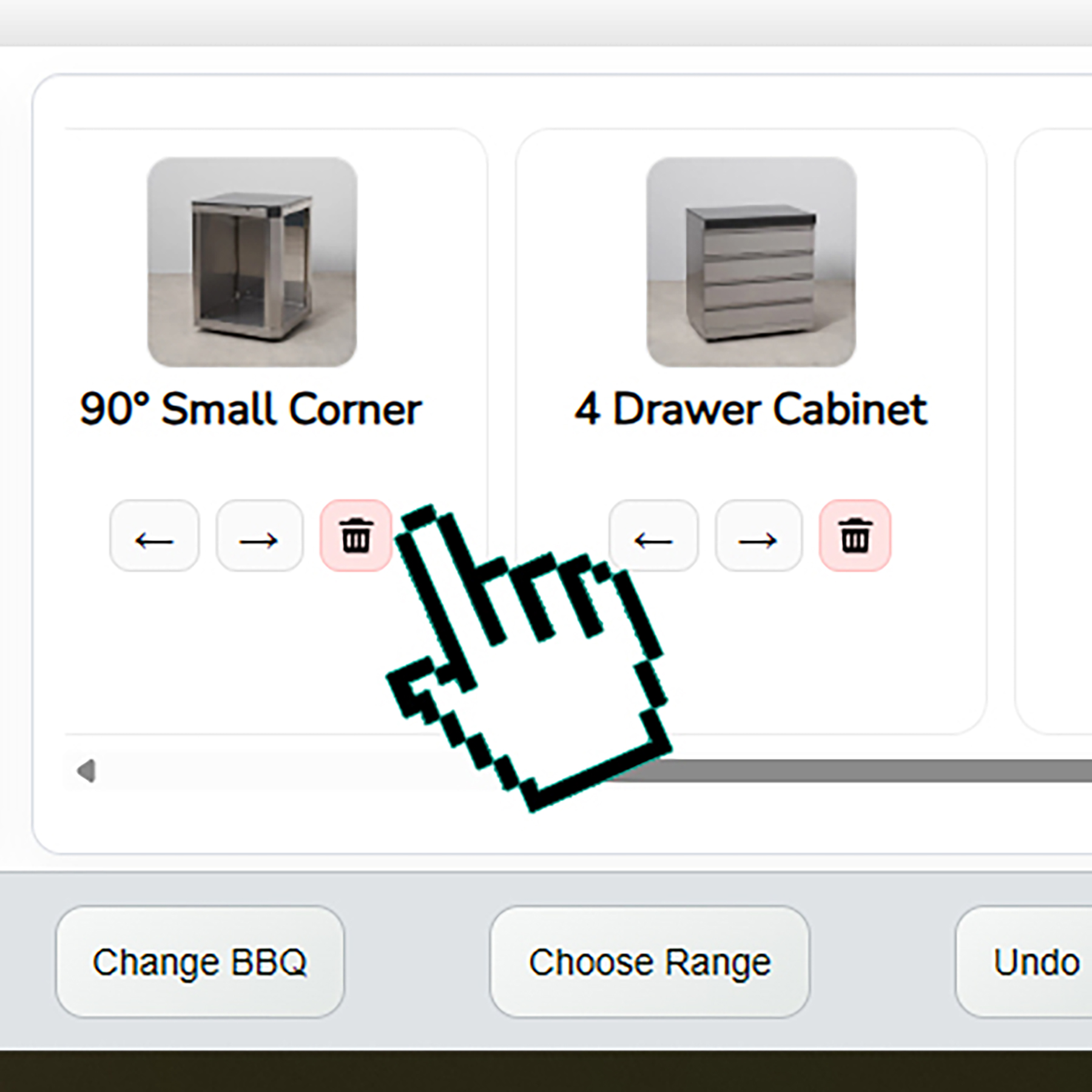
Click the unit in the 3D scene so it highlights and its small buttons appear. Tap the little bin icon to remove it; the Kitchen Info strip tile for that unit will also disappear. If you prefer, right-click the unit and pick Remove unit from the small menu.
How do I move a unit?
Click the unit in the 3D scene. It will highlight and the matching card in the Kitchen Info strip (bottom/right list) will highlight too. Small left/right arrows appear on the unit; tap an arrow to nudge the unit along the run. You can also click-and-hold its tile in the Kitchen Info strip or the mobile HUD, drag it left or right, and let go to drop it in a new spot.
How do I choose a different unit?
When the unit selector is open, tap the picture or title of the unit you want so it is selected, then tap Add. If you tap a unit title in the Kitchen Info strip (the bottom/right list of your placed units), the camera jumps to that unit in the 3D scene and selects it.
What happens when I click a unit in 3D?
A single click selects the unit, highlights it, and shows the move arrows and bin. The same unit tile in the Kitchen Info strip also highlights so you can see which one it is in your list.
What does right-click do?
Right-click a unit in the 3D scene to open a small menu. Tap Remove unit there if you want to take it out without using the bin button.
How do I drag and drop units?
Click-and-hold a unit tile in the Kitchen Info strip (the bottom/right list of your units) or the mobile HUD. Drag it left or right until it sits where you want, then let go to drop it. The 3D scene updates to match the new order.
Can I change the core unit or range?
Yes. Tap the Choose Core Unit button in the bottom bar to swap to another core unit. Tap Choose Range to switch between Stainless Steel and Black ranges; all units will follow the chosen range.
How do I share or save my design?
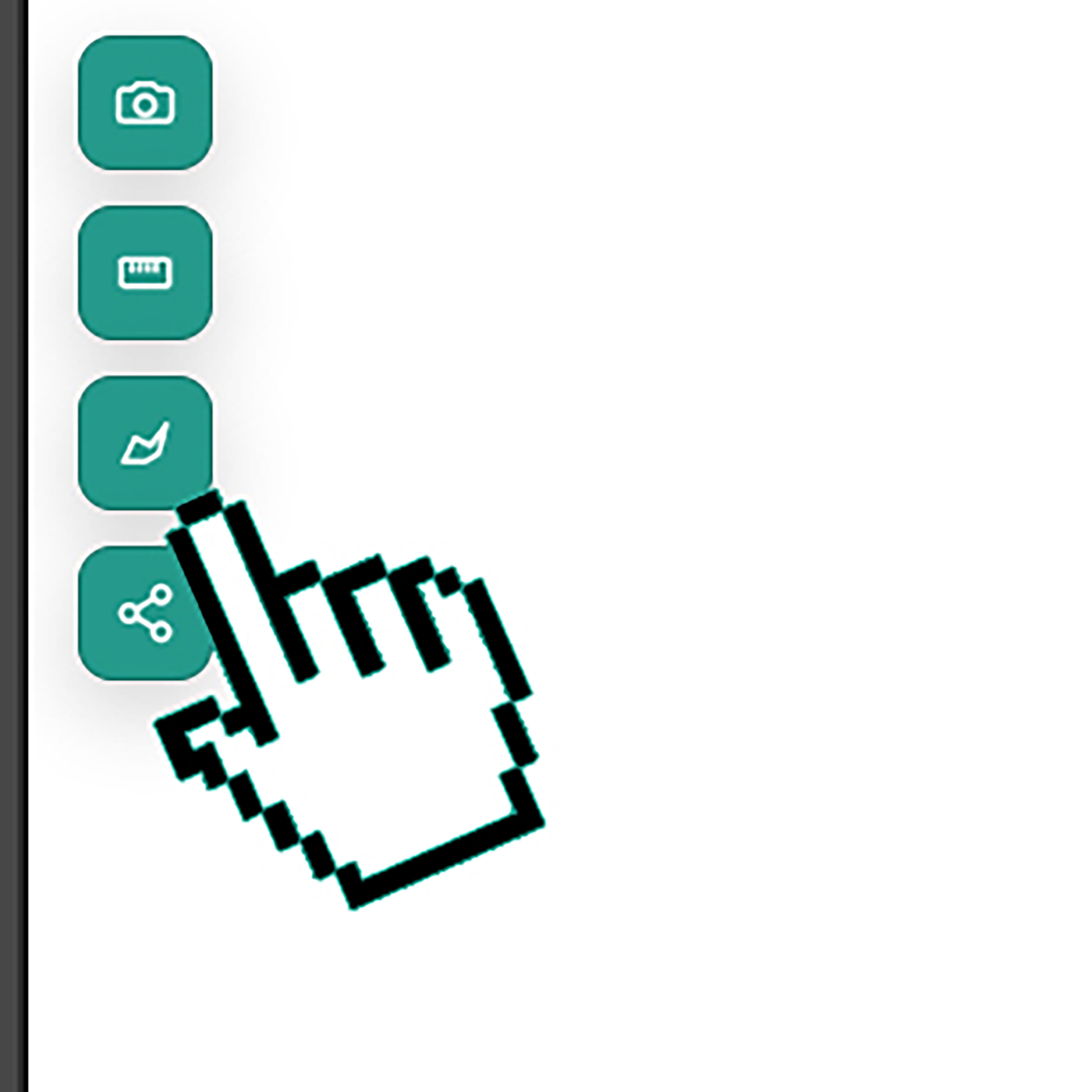
Tap Share to copy a link to your build that you can send to someone else. Tap the small camera button to download a picture of your current layout and save it.
What does this tool do overall?
It helps you build your own Draco Grills outdoor kitchen by mixing and matching units around your core unit, then saving or sharing the design.
Who can help if I get stuck?
The Garden Trends team is happy to help with layouts, availability, and ordering anytime.
 Total Width: 0
Total Depth: 0
Total Cost: £0.00
You save £0.00
Total Width: 0
Total Depth: 0
Total Cost: £0.00
You save £0.00